
How to Create a Link Page
Creating a Link Page in Lihat.ai allows you to showcase multiple links, products, and social media profiles in one customizable landing page. Follow the detailed steps below :
Open the Link Page Menu
- From your Dashboard, navigate to the sidebar on the left.
- Click on “Link Pages” in the menu.
- You’ll be redirected to the Link Page section, where you can create, manage, or edit your existing pages.
📘 Tip: You can create multiple link pages for different purposes, such as booking links, product showcases, or contact pages.
Choose the Link Page Category
When you start creating a new link page, you’ll first be asked to select a category that best fits your goal.
Each category defines the purpose and layout style of your page. Examples include:
- Personal Profile – for influencers, creators, or professionals.
- Business or Product Showcase – for promoting services, stores, or portfolios.
- Booking & Contact Page – for receiving inquiries or appointments.
- Event or Webinar Page – for promoting an upcoming session.
Selecting the right category ensures your template includes the most suitable layout and button options.
Choose a Template
After selecting your category, browse through the available template options.
Each template comes with a unique layout and button style that fits different use cases.
You can preview each design and click “Use This Template” to start editing.
Templates can later be customized further — including fonts, colors, buttons, and structure.
Edit Profile and Bio
You can edit your profile picture, display name, and bio directly on the page to match your brand identity or personal profile.

Add Social Media Links
Connect your social accounts (Instagram, TikTok, YouTube, etc.) so visitors can easily find you across platforms.
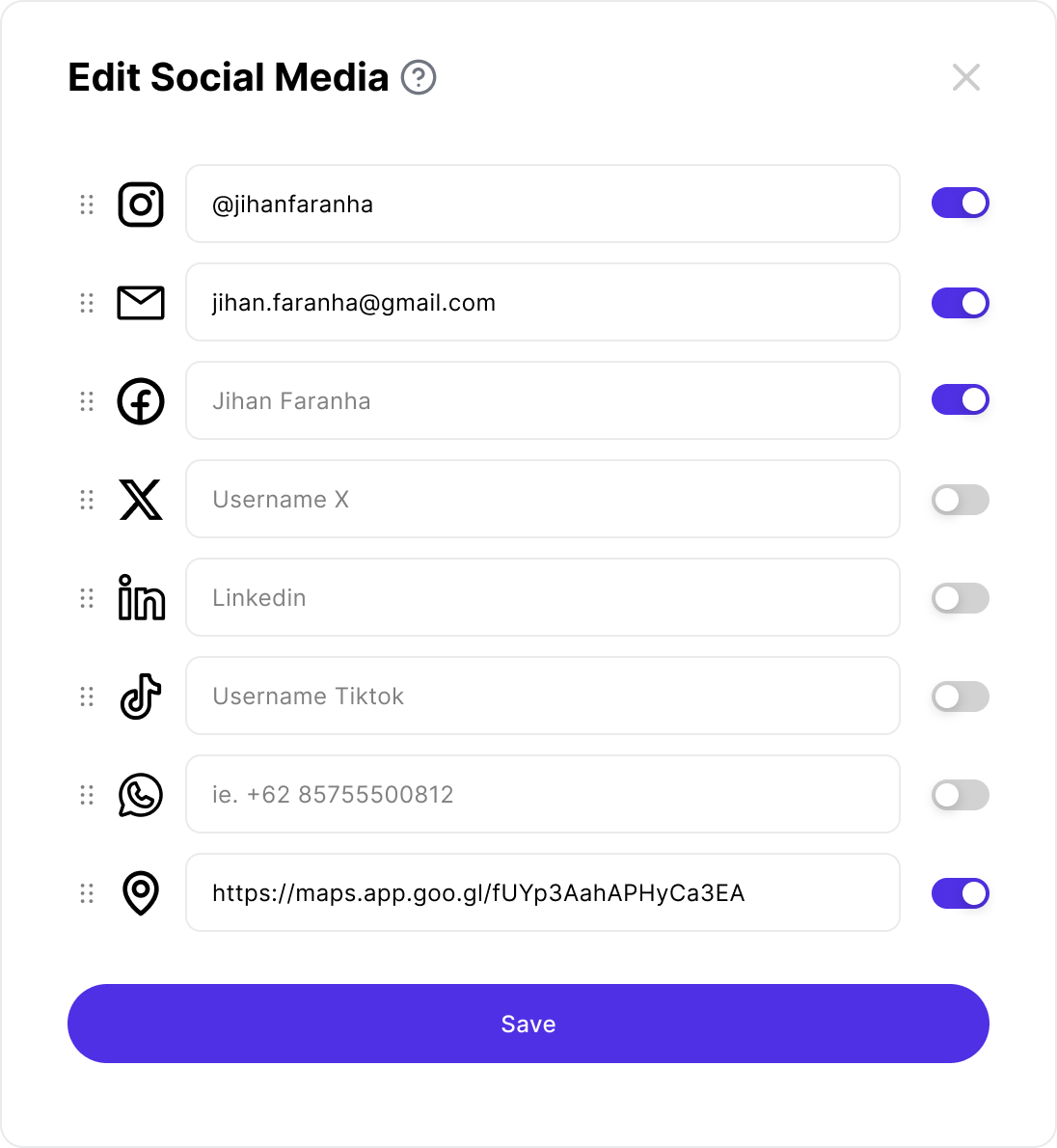
Add Button or Link
In this step, you can add two types of buttons to your landing page:
Basic Link
This type is used for standard external links (e.g., Instagram, YouTube, Portfolio, Contact Form, etc.)

Flow:
- Click “Add Button” → “Basic Link”
- Fill in the following fields:
- Button Name: The label shown on the page (e.g., “Follow Me” or “Visit Website”).
- URL Link: The external link you want to direct users to.
- Add Thumbnail (Optional):
Upload a small icon or image representing your link (e.g., YouTube logo). - Change Color Options:
- Button Color: Choose your preferred button background color.
- Text Color: Adjust the text color for contrast or theme consistency.
- Theme Settings (Optional):
- Color Palette: Select a pre-made palette or create a custom one.
- Font Pairing: Choose the font style combination for heading and body text.
- Custom Appearance:
- Theme Style: Apply a light or dark theme.
- Customize Color Palette: Adjust each color element manually.
- Font Pairing: Preview and select typography combinations.
- Wallpaper / Background: Upload an image or select a solid color background.
Product Link
This type is used when you want to showcase and sell a product directly from your landing page.
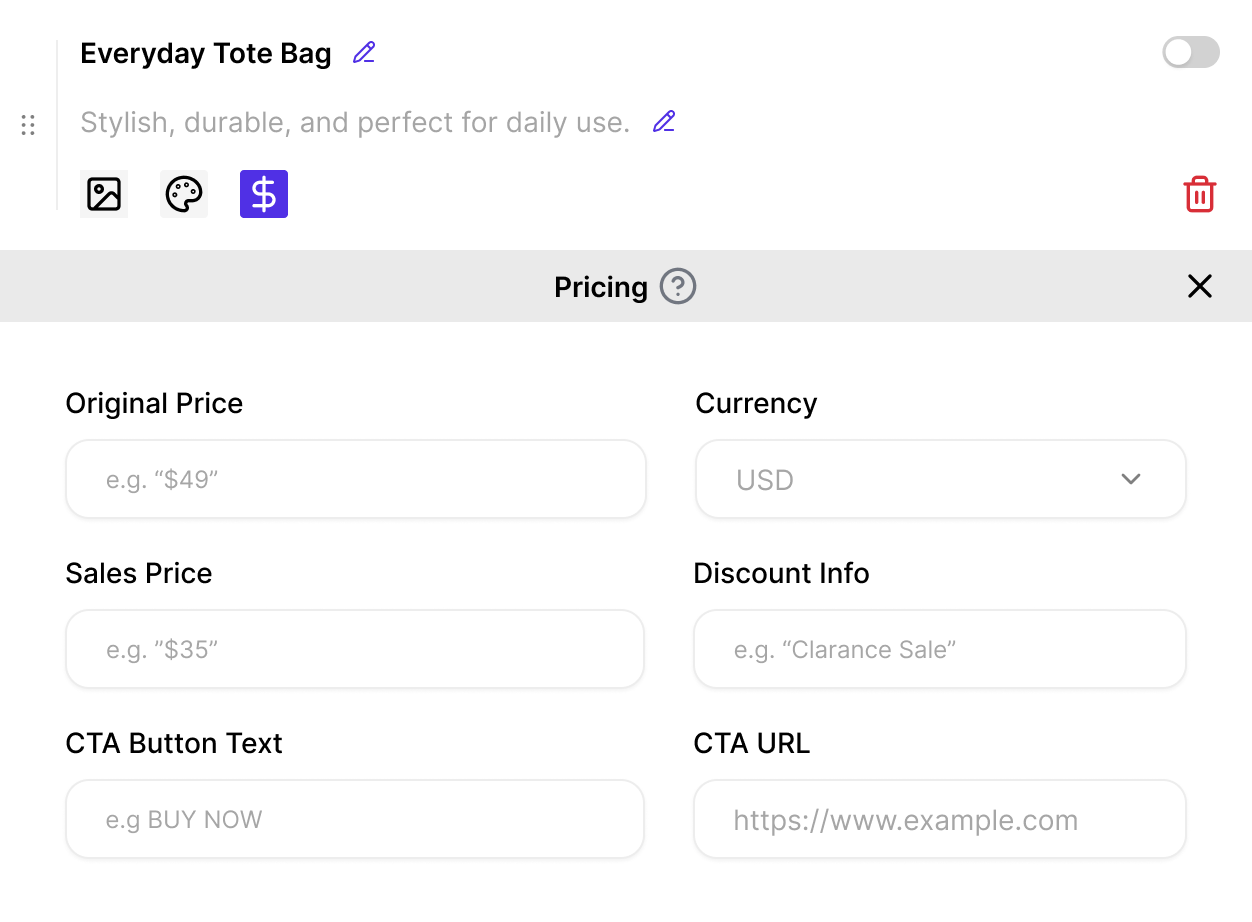
Flow:
- Click “Add Button” → “Product Link”
- Fill in the product details section:
- Product Title: Name of the product or service.
- Description (Optional): Short info or tagline.
- Add Thumbnail:
Upload a product image or icon that visually represents your product. - Pricing Details:
- Original Price: The initial selling price before discount.
- Currency: Choose your preferred currency (e.g., USD, IDR).
- Sales Price: Set the discounted or current selling price.
- Discount Info: Add a label (e.g., “-20% OFF”) if applicable.
- CTA Button Text: Example: “Buy Now”, “Get Yours”, or “Order via WhatsApp”.
- CTA URL: The link to checkout or redirect to an external store.
- Change Color:
- Button Color: Customize to match your brand.
- Text Color: Adjust for visibility and design consistency.
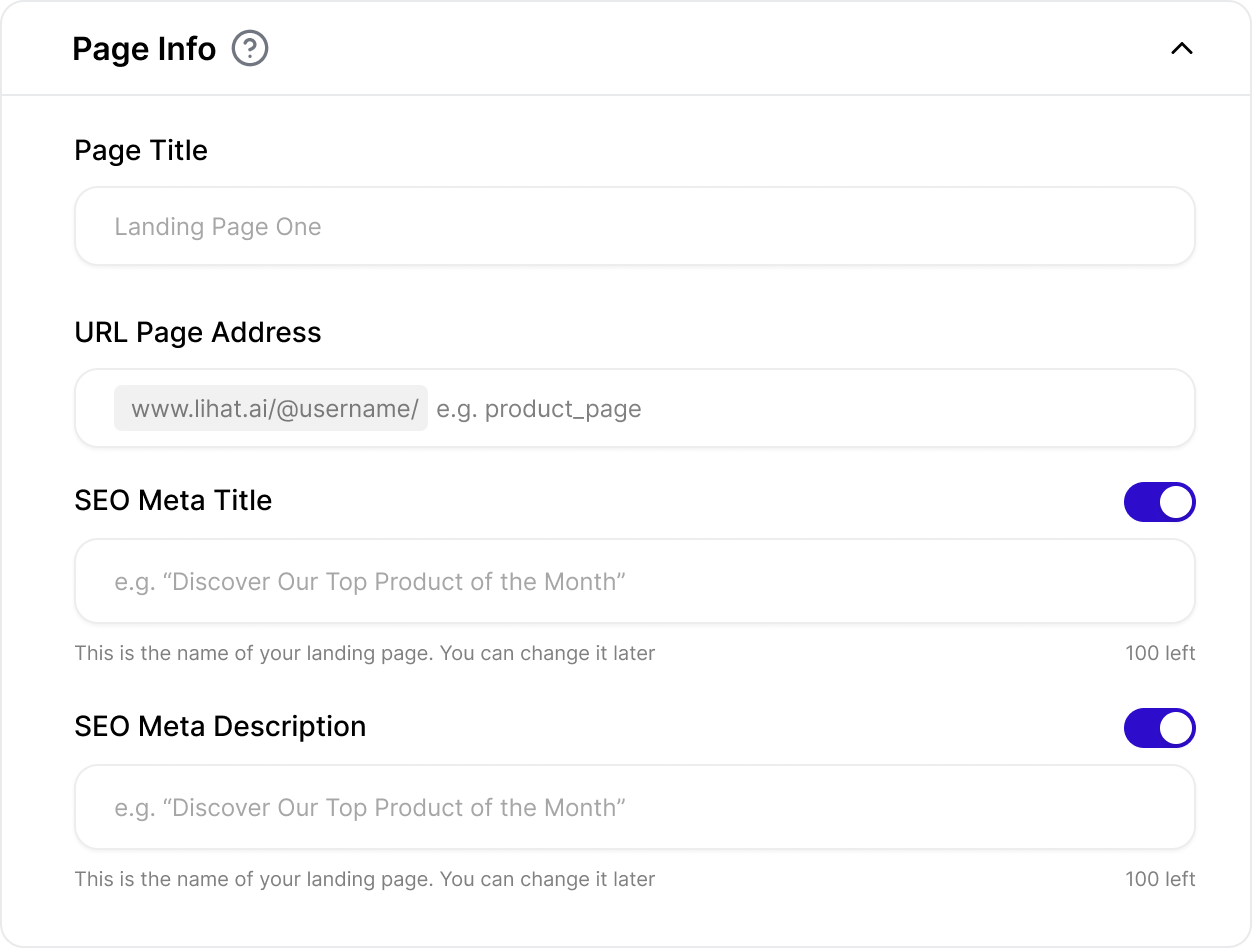
- Page Info (for SEO):
- Page Title: The main title displayed in browsers.
- URL Page Address: Your custom URL slug (e.g., lihat.ai/yourstore).
- SEO Meta Title: The title that appears in search results.
- SEO Meta Description: A short description that summarizes the page content.
- Theme Settings:
- Color Palette: Pick from preset color combinations or create your own.
- Font Pairing: Choose suitable font combinations for product showcase.
- Custom Appearance:
- Theme: Switch between layout styles (e.g., minimal, grid, card-based).
- Customize Color Palette: Refine color details for highlights and accents.
- Font Pairing: Adjust typography hierarchy.
- Wallpaper / Background: Add texture, gradient, or a solid color background.
Save and Publish
Once satisfied, click “Save” or “Publish” to make your landing page live.
Your page will instantly be available at your custom Lihat.ai link.
Summary
The Lihat.ai Landing Page Builder allows users to create and personalize a single-page profile or product showcase efficiently.
Through an intuitive flow from selecting templates, customizing colors, adding buttons (Basic or Product), to defining SEO metadata users can design professional landing pages without coding.
Each button type supports detailed customization like pricing info, theme personalization, thumbnails, and color control, ensuring flexibility for both creators and businesses.